
Setup · 2 of 2
Connect and sign in
Your box is plugged in and its small screen shows a network name starting with KiteRelay-. This gets it onto your home WiFi and signs you in. You need your phone for the first few steps.
New to this? Start with Start here to plug it in first.
Step by step
Open WiFi settings on your phone
The first time it starts, KiteRelay makes its own temporary WiFi network so your phone can reach it. Open your phone’s WiFi settings and leave them open.
Read the network name and password off the small screen
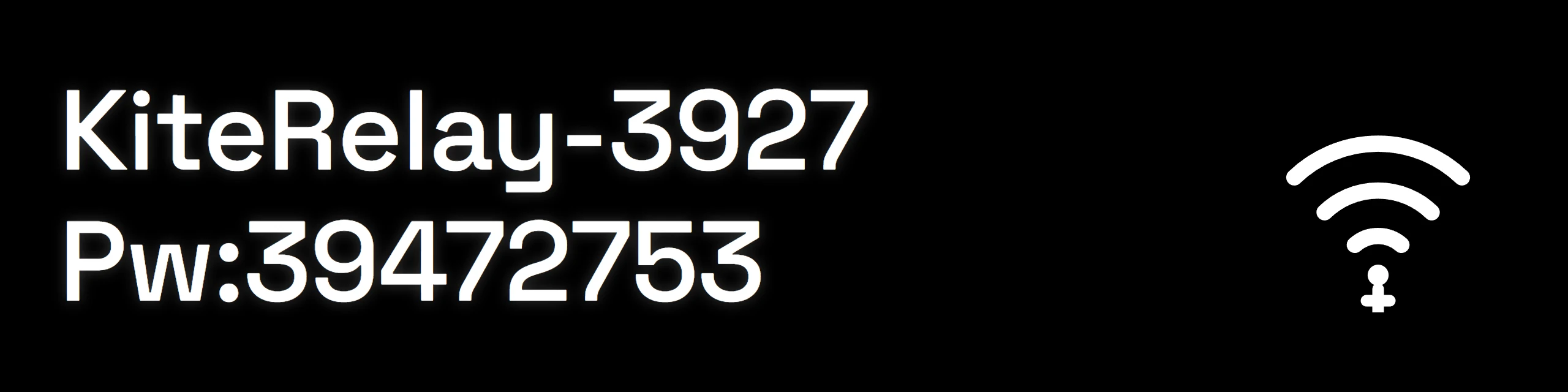
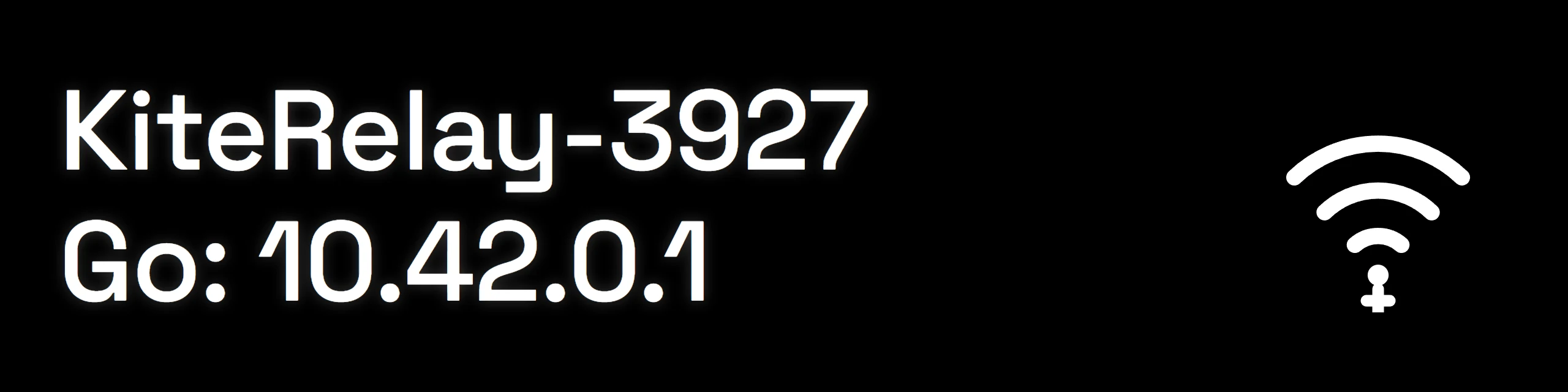
The screen names the network to join and shows its password. The bottom line changes every four seconds between the password, marked Pw, and the address to open later, marked Go, so wait for the one you need. The top line, the network name, stays put.
Join that network
On your phone, pick the network whose name starts with KiteRelay-. It is a protected network, so your phone asks for the password. That is the password on the changing line of the small screen. Enter it and join.
The setup page opens itself
Once you are on that network, a setup page should open on its own. If it does not, open your browser and type in the address from the small screen. It is on the changing line, after Go. It is not always the same address, so read it off your own screen, not off the picture above.
Choose your home WiFi
On the setup page, pick your normal home WiFi from the list and enter its password. The box saves it and joins, and it remembers it from now on.

Write down the address it shows you
When it connects, both the setup page and the small screen show your box’s web address. Write it down or screenshot it. This is how you reach KiteRelay from now on. The temporary setup network disappears at this point, which is normal and means it worked.

Later, you can give it a friendly name under Devices, then Name This Device, and reach it by that name on most devices. The address on its screen always works.
Open that address. Your browser will warn you, and that is expected.
Reconnect your phone or laptop to your normal home WiFi and open the address from step 6. The first thing you see is your browser saying the connection is not private. This is the one moment in setup that looks alarming and is not.
Public websites carry a certificate that a browser can check with a public authority. KiteRelay lives on your own network, where no public authority can vouch for it, so it makes its own certificate and the browser is telling you it cannot check it. The connection is still encrypted, the same way a public site’s would be. Choose Advanced, then proceed, and you will reach the device.
Create your sign-in
There is no starting password to look up. Nothing comes on paper or on a card. The device asks you to make your own sign-in: pick a username, or leave it blank to use admin, and choose a password of at least ten characters. That one password covers both the control page and the console, and it is the only one you will ever need for this device. Once it is saved, you are in.
Asked to activate first? A new unit is ready to use and skips this. But if you ever reflash or replace its card, it will ask to be activated and show a device ID, on both the page and the small screen. Email that ID to support@kiterelay.com and paste back the code we send, which starts with KR1-. Keep that email: the same code works on your device forever, even after a reflash.


After you’re in
It keeps itself up to date
KiteRelay checks for signed updates and installs them on its own, so you stay on the latest version without doing anything. You can also check manually from the Update drawer on the control page. The small screen confirms when an update has gone in.

Reach it from anywhere
To use KiteRelay when you are away from home, open the Network drawer on the control page and follow the steps under Tailscale to turn it on. It is free for personal use.
- You also need the Tailscale app on whatever phone or laptop you want to connect from. Both ends have to be signed in to the same account.
- If you use another VPN, turn it off while you connect. Most VPNs will block the connection.
Stuck on something? The questions people actually ask covers the common ones.