
Control
One page runs the whole thing.
Four steps to get in, what plugs into what, then the page itself, captured from the shipping software and clickable drawer by drawer.
01How it works
Four steps. Then you’re in.
- 01
Plug it in and power it up.
One cable carries the other computer’s screen into the box. One makes the box act as its keyboard and mouse. It runs on its own power supply, not the computer’s, so plug that in too and switch it on.
- 02
Point your phone at it.
The first time it starts, the box makes its own WiFi network. Join it from your phone, pick your home WiFi, and it remembers it forever.
- 03
It shows up as standard peripherals.
To the computer you’re controlling, it looks like an ordinary wireless mouse and keyboard, plus a plain monitor. There is nothing to install.
- 04
Open one web page.
The setup screen hands you your box’s address. Open it from your own laptop, set your password, and you are in. Move your mouse and its cursor moves. Type and it types.
02How it connects
Two cables into the box. Then it lives on your network.
The computer you control hands its picture to the box over HDMI and takes its keyboard and mouse from it over USB-C. That is all it ever sees. The box runs on its own power supply, not the computer’s.
The box joins your WiFi, set up from your phone, or takes an Ethernet cable to your router if you would rather. Your own laptop or phone opens its page from anywhere on that network, and with Tailscale switched on, from anywhere at all.
03The control page
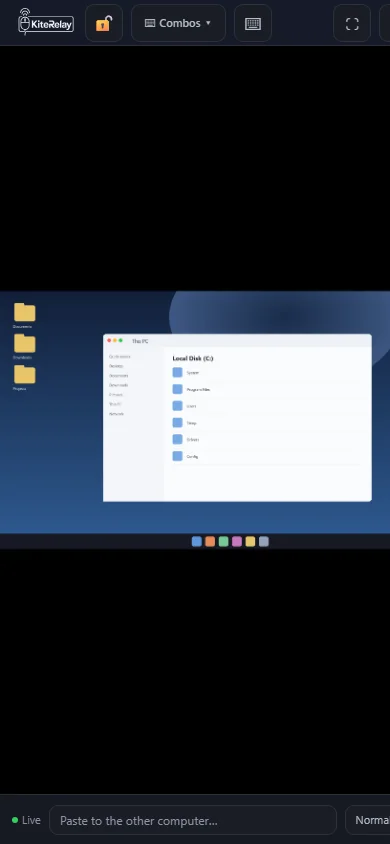
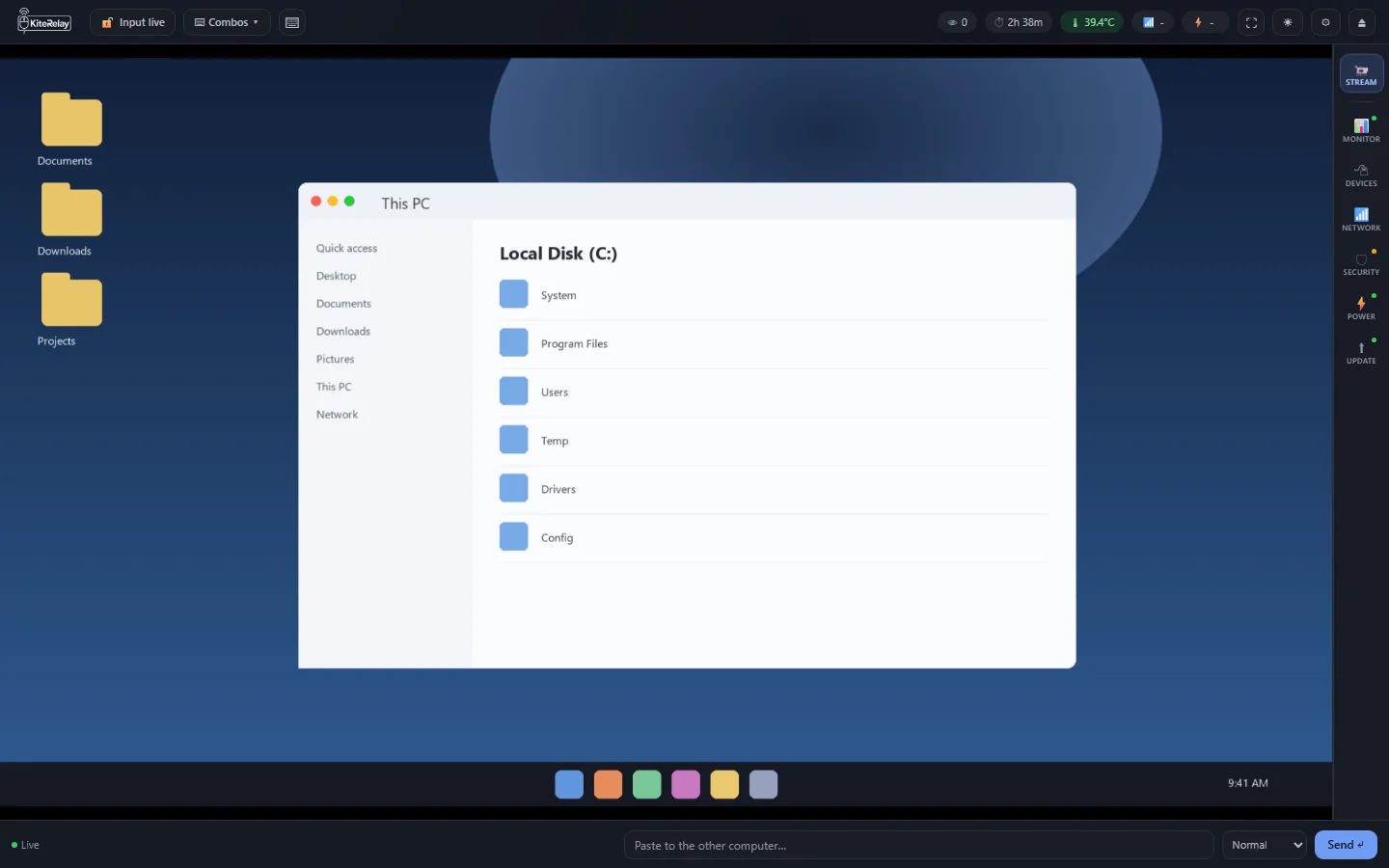
Captured from the shipping softwareOne page runs the whole thing. This is it.
Monitor
Live status and health at a glance: uptime, temperature, load and power state, with its keyboard, mouse and video links, and anyone connected, listed underneath.
Security
Change the page password, switch on Two-Factor Login, and use Network Lockdown to stop the box answering anything outside your private network.
Power
Restart or shut it down from the browser, and set it to unplug its own keyboard and mouse from the other computer whenever it sits idle.
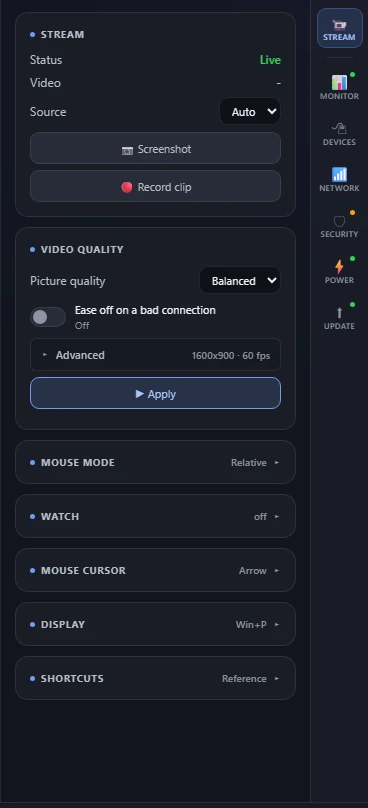
Stream
Picture quality chooses between Smooth, Balanced and Sharp. It ships Balanced, a middle ground between crisp text and smooth, low-lag control; pick Sharp for the crispest text on a fast link. Ease off on a bad connection keeps your keyboard and mouse sharp when the line is weak.
04What sets it apart
Everything a good box does. And a few things they don’t.
Fixes itself.
Plug it in and it sets up its own video and connection. If WiFi or power blips mid-session, it reconnects on its own.
Type and paste across.
An on-screen keyboard for keys your laptop can’t send, saved clips and key-sequence macros, plus paste a password or block of text straight onto the other machine.
How an update lands
1600x900picture
sharper than 720p, and the 60 Hz signal that even locked-down corporate laptops accept.
60fps
one to one with the source, so no frame is ever dropped.
2cables
to the other computer: one carries its screen, one lets the box act as its keyboard and mouse.
0installs
on the computer you control. It sees a keyboard, a mouse and a monitor.
Two lanes, one link
Questions about this? The FAQ has a section on using it.